


Online Safety for Seniors: A Guide to Spotting Scams & Staying Secure
By: Vincent Totino
Read Time: 15 min.
October 29, 2026
The Internet makes it easier than ever to video-chat with the grandkids, pay bills from your armchair, and catch up with old friends. But scammers know that too, and they often aim their tricks at older adults who have spent a lifetime building savings, good credit, and trust in others.
The good news: you don't need to be a tech expert to stay safe. A few simple habits, plus an Internet provider that has your back, go a long way. This guide walks you through the most common scams, what the warning signs look like, and exactly what to do if something goes wrong.
The golden rule: Real companies, banks, and government agencies will never rush you, threaten you, or ask you to pay with gift cards, wire transfers, or cryptocurrency. When in doubt, slow down, hang up, and call back using a number you already trust.
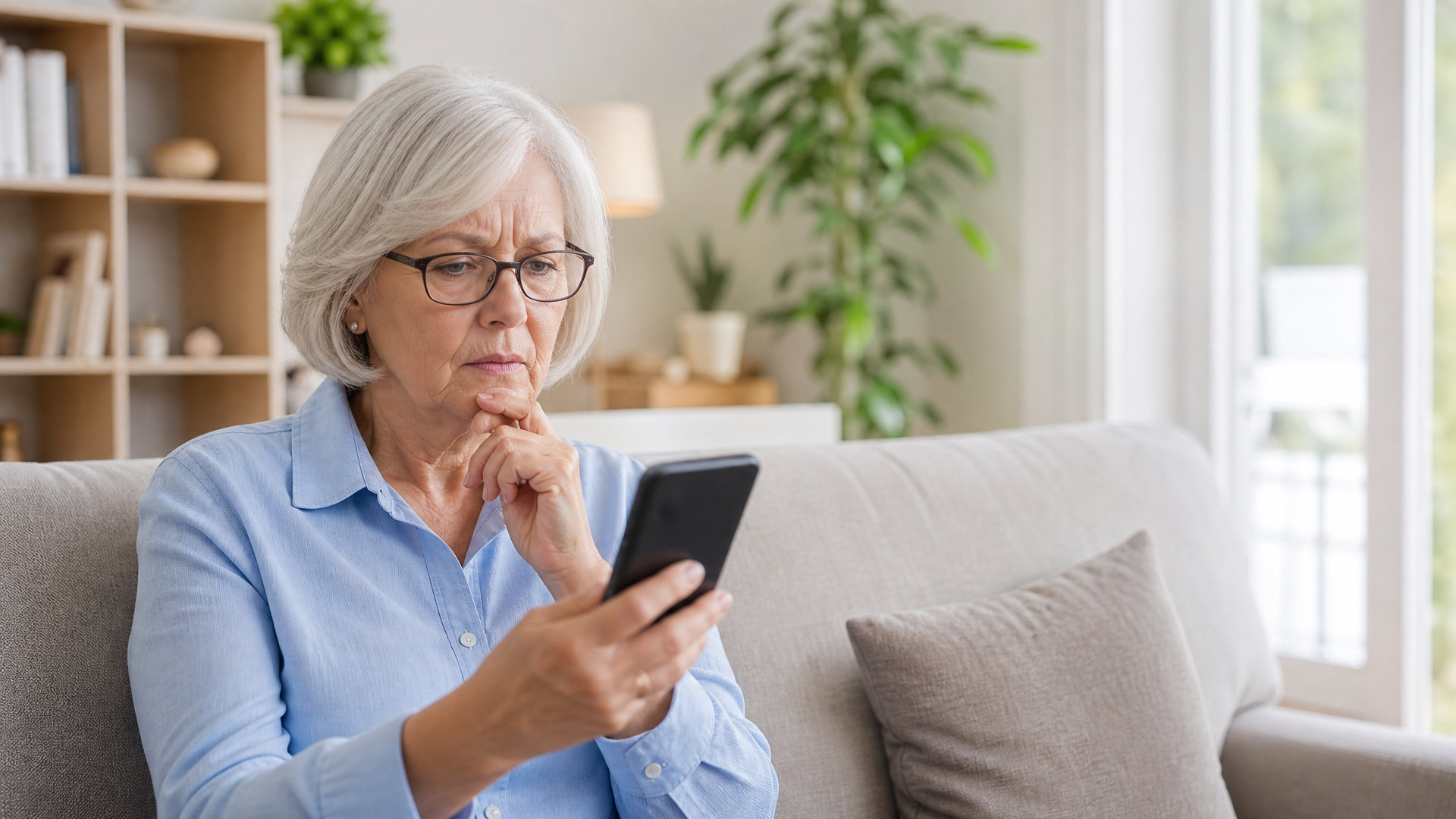
How to Spot Scams and Phishing Emails
Phishing is when a scammer sends an email pretending to be someone you trust, like your bank, Medicare, Amazon, or even a family member. The goal is to get you to click a link, open an attachment, or share personal information such as your Social Security number or account password.
Warning signs of a phishing email (see example below)
- Urgent or scary language: "Your account will be closed in 24 hours!" or "Suspicious activity detected!" Scammers want you to panic so you act before you think.
- A sender address that doesn't match: The name may say, "Bank of America," but the actual address is something like secure-alert@bofa-verify.net. Tap or hover over the sender's name to see the full address.
- Generic greetings: "Dear Customer" or "Dear Valued Member" instead of your name.
- Specific name greetings: Some scammers will have your name or pose as a coworker or friend. This is another way they can “earn your trust”
- Requests for personal information: Legitimate companies will never email you asking for your password, PIN, Social Security number, or Medicare number.
- Links that don't go where they claim: On a computer, rest your mouse over a link (without clicking) to preview the real web address. If it looks strange, don't click.
- Unexpected attachments: Invoices "shipping labels," or "documents" you weren't expecting can carry viruses.
- Offers that are too good to be true: You didn't enter a sweepstakes, so you didn't win one.
What to do instead
- Don't click any links or open attachments.
- If you're worried the message might be real, open a new browser window and type the company's website address yourself, or call the number on the back of your card or statement.
- Delete the email or mark it as spam or junk.
- Report phishing to the Federal Trade Commission at ReportFraud.ftc.gov.
Optimum has your back: Optimum Internet includes built-in security at no extra cost. Our network gives you a warning before you visit known dangerous websites, so if you accidentally click a bad link, you get a second chance to turn back.
Example Phishing email
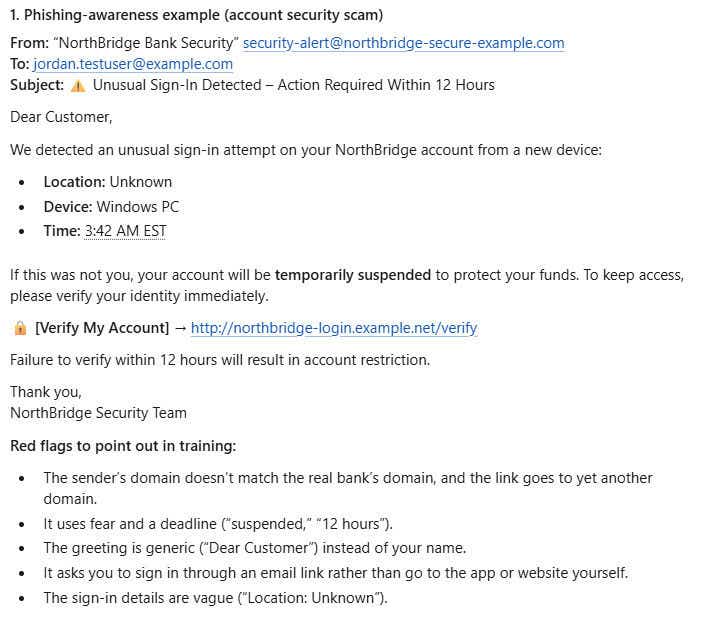
The above image is an aexample of a Phishing/Spam email. Individuals should be careful when clicking on a links within an email of this type.
Avoiding Phone and Text-Message Scams
Scam calls and texts (sometimes called "vishing" and "smishing") work the same way as phishing emails: they impersonate someone you trust and pressure you to act fast. Caller ID can be faked, so a call that shows your bank's name, a local number, or even "Social Security Administration" may not be real.
Common phone and text scams targeting seniors
- The grandparent scam: A caller says, "Grandma, it's me, I'm in trouble," and begs for bail or hospital money, often asking you not to tell Mom and Dad.
- Government impostors: Someone claims to be from Medicare, the IRS, or Social Security and says your benefits will stop or you'll be arrested unless you pay right now.
- Tech support scams: A caller or pop-up claims your computer has a virus and asks for remote access or payment to "fix" it.
- Fake delivery texts: "Your package couldn't be delivered. Click here to reschedule."
- Bank fraud alerts: A text asks you to confirm a large purchase by replying or clicking a link, then a "fraud specialist" calls you asking for your login code.
- Prize and lottery calls: You've "won," but first you need to pay taxes or fees.
How to protect yourself
- Let unknown calls go to voicemail: A real caller will leave a message.
- Hang up and call back: If a caller says they're from your bank or a government agency, hang up and dial the number on your card, statement, or the agency's official website.
- Create a family code word: Pick a secret word only your family knows. If a "grandchild" calls in a panic, ask for it.
- Never share verification codes: A one-time code sent to your phone is like a key to your account. No real company will ever call and ask you to read it back.
- Don't click links in unexpected texts: Forward spam texts to 7726 (it spells SPAM) so your carrier can block them, then delete the message.
- Register your number with the National Do Not Call Registry at DoNotCall.gov: Scammers ignore it, but it cuts down on legitimate telemarketing so suspicious calls stand out.
- Never pay with gift cards, wire transfers, cryptocurrency, or payment apps to someone who contacted you out of the blue: That's a scam every time.
Creating and Managing Strong Passwords
Your passwords are the locks on your digital front door. A weak or reused password is like hiding your house key under the welcome mat: it's the first place a thief will look.
What makes a password strong
- Length beats complexity: Aim for at least 12 to 16 characters.
- Use a passphrase: String together four or more random words, like Teapot-Garden-Violin-Sunrise. It's easy for you to remember and hard for a computer to guess.
- Skip the personal details: Avoid birthdays, anniversaries, pet names, street names, and grandchildren's names. These are often easy to find on social media.
- Use a different password for every important account If one website is breached, scammers will try that same password on your email and bank.
Easy ways to keep track of them
- A password manager is an app that safely stores all your passwords behind one master password and can create strong passwords for you. Many phones and web browsers have one built in.
- A written notebook is OK, if it stays in a safe place at home, never in your wallet or taped to your computer.
Add a second lock: two-step verification
Two-step verification (also called two-factor authentication or multi-factor authentication) means that after you enter your password, you also enter a short code sent to your phone. Even if a scammer steals your password, they can't get in without that code. Turn it on for your email, bank, and social media accounts. It's usually found under "Security" in your account settings.
Remember: That code is for you alone. Never read it to anyone who calls, texts, or emails you.
Online Banking Safety
Online banking is convenient and, when done right, very safe. It can even help you catch fraud faster than waiting for a paper statement. Here's how to bank with confidence.
- Use your bank's official app or website: Download the app from the Apple App Store or Google Play or type the bank's web address directly into your browser. Never log in through a link in an email or text.
- Look for the lock: Before entering your login, check that the web address starts with https:// and shows a small padlock icon.
- Generic greetings: "Dear Customer" or "Dear Valued Member" instead of your name.
- Bank at home, not on public Wi-Fi: Coffee shops, library, and hotel networks can be watched by others. Save your banking for your secure home connection or your phone's cellular data.
- Turn on account alerts: Most banks can text or email you whenever there's a purchase, withdrawal, or login. You'll spot anything unusual right away.
- Check your accounts weekly: A quick look at recent transactions helps you catch problems early.
- Log out when you're done: Especially on a shared computer or tablet
- Watch for "bank impostor" calls: Your bank will never call and ask you to move money to a "safe account" or to read back a code. If you get a call like that, hang up and call the number on the back of your card.
- Consider a trusted contact: Many banks let you name a trusted person they can reach if they notice unusual activity on your account.
Optimum has your back: A secure home network is the foundation of safe online banking. Optimum Internet's built-in security helps steer you away from known malicious websites, and Optimum Advanced Security adds real-time monitoring of your home network with alerts if it spots unusual activity.
Social Media Privacy
Facebook, Instagram, and other social sites are wonderful for sharing photos and staying close to family. But everything you post can be seen, saved, and used by strangers, including scammers looking for clues to your passwords, security questions, or travel plans.
Smart privacy habits
- Lock down your settings: In your account's "Privacy" or "Settings" menu, set your posts and friends list to "Friends Only" instead of "Public."
- Share less personal details: Leave your birth date, home address, phone number, and maiden name off your profile. These are common answers to security questions.
- Post vacation photos after you're home: Announcing that you're away alerts everyone your house is empty.
- Skip the quizzes: "What was your first car?" or "Which street did you grow up on?" quizzes can quietly collect answers to your security questions.
- Only accept friend requests from people you know: If you get a request from someone you're already friends with their account may have been copied. Call them to check.
- Be wary of romance and "new friend" messages: Scammers build online relationships over weeks or months, then ask for money for an emergency, a plane ticket, or an "investment." Never send money to someone you've only met online.
- Watch out for fake giveaways and marketplace deals: If a seller insists on payment by gift card or wants to move the conversation off the site, walk away.
AI Scams and How to Spot Them
Artificial intelligence (AI) tools can now copy a person's voice, create realistic videos, and write flawless messages in seconds. Scammers use these tools to make old tricks far more convincing.
What AI scams look like
- Voice-cloning calls: With just a few seconds of audio from a social media video, scammers can make a call that sounds exactly like your grandchild, son, or daughter in distress.
- Deepfake videos: Fake videos of celebrities, news anchors, or financial experts promoting "guaranteed" investments, miracle health products, or giveaways.
- Polished phishing: Spelling mistakes used to be a giveaway. AI now writes emails and texts that look perfectly professional.
- AI chat "friends.": Romance and friendship scams can now run around the clock with AI-written messages that feel personal and caring.
How to protect yourself
- Trust the request, not the voice: A familiar voice asking for money, gift cards, or secrecy is a red flag, no matter how real it sounds.
- Use your family code word: This simple step defeats even the most convincing voice clone.
- Hang up and call back on a number you already have for that person.
- Watch videos with a skeptical eye: Look for lips that don't quite match the words, odd blinking, blurry edges, or unnatural lighting. Celebrities don't personally ask fans for money.
- Be careful what you post: Limit public videos and voice recordings of yourself and your family.
- Slow down. Every AI scam depends on urgency: Taking even 10 minutes to check with someone you trust can stop it cold.
What to Do If You Think You've Been Hacked
First, take a breath. Scams happen to smart, careful people every day, and there's no reason to feel embarrassed. Acting quickly is what matters most.
Signs something may be wrong
- Friends say they're getting strange messages or emails from you.
- You can't log in to an account, or your password suddenly doesn't work.
- You see purchases, withdrawals, or logins you don't recognize.
- Your computer is suddenly slow, shows lots of pop-ups, or has programs you didn't install.
- You get bills or credit alerts for accounts you never opened.
Your step-by-step recovery plan
- Disconnect: If you think your computer has been taken over, turn off its WiFi or unplug it from the Internet. If you gave someone remote access, shut the computer down.
- Call your bank and credit card companies: Use the number on the back of your card. Tell them what happened so they can freeze accounts, stop payments, and send new cards.
- Change your passwords: Starting with your email and bank. Do this from a different device you know is safe. Turn on two-step verification.
- Run a security scan: Use your antivirus software, or ask a trusted tech expert to check your device.
- Freeze your credit: Contact sll three credit bureaus (Equifax, Experian, and TransUnion). This stops anyone from opening new accounts in your name.
- Report it: File a report at IdentityTheft.gov or ReportFraud.ftc.gov, and with the FBI's Internet Crime Complaint Center at IC3.gov. Adults 60 and over can also call the National Elder Fraud Hotline at 1-833-FRAUD-11 (1-833-372-8311) for free, personal help.
- Tell someone you trust: A family member or friend can help you work through the steps and keep an eye out for follow-up scams. Be careful of "recovery" offers from strangers promising to get your money back for a fee. That's another scam.
Optimum has your back: Optimum Internet customers get 24/7 tech support. Add Optimum Total Care for U.S.-based premium tech support and priority status when you call, so you get a real expert on the line when you need one most.
How Optimum Helps Keep You Protected
Good habits are your first line of defense. A secure Internet connection is your second. Optimum builds protection right into your service, so staying safe online doesn't take extra work.
Built-in security, included at no extra cost
Every Optimum Internet plan includes built-in network security that warns you before you visit known dangerous websites, helping protect you and your personal information. It works automatically, with nothing to download or set up. You also get 24/7 tech support whenever you need a hand.
Optimum Advanced Security: whole-home protection
Want more peace of mind? Optimum Advanced Security builds on your built-in protection and covers every connected device in your home, from phones and tablets to smart TVs and doorbell cameras.
- Real-time threat blocking with a simple dashboard that shows you what's been stopped
- Network and device protection that blocks unauthorized access to your devices
- Alerts for unusual activity on your home network
- Up to five profiles with custom settings for each person in your home, plus content filters and Internet schedules for visiting grandkids
- No extra equipment and no separate setup required
Bundle protection, coverage, and support
| Package | What's included | Price |
|---|---|---|
| Advanced Security | Whole-home Internet security | $5/mo |
| SecureWiFi+ | Advanced Security + Whole Home WiFi | $10/mo |
| SecureCare | Advanced Security + Total Care expert support | $15/mo |
| SecureComplete | Advanced Security + Whole Home WiFi + Total Care | $20/mo |
| SecureComplete+ | Advanced Security + Whole Home WiFi + Total Care Plus | $25/mo |
SecureCare is a smart fit for many seniors: you get always-on home network protection and U.S.-based premium tech support with priority status when you call Optimum. Have a question about a strange email or a pop-up that won't go away? A real expert is ready to help.
Explore Optimum Advanced Security | Shop Internet
Frequently Asked Questions
What is the most common online scam targeting seniors?
Impostor scams are among the most common. A scammer pretends to be a grandchild, a government agency, a bank, or tech support and pressures you to send money or share personal information.
How can I tell if an email is a phishing scam?
Look for urgent threats, a sender address that doesn't match the company, generic greetings like "Dear Customer," and requests for passwords or account numbers. When in doubt, contact the company directly using a number or website you already trust.
Will my bank ever call and ask for my password or a verification code?
No. Your bank will never ask for your password, PIN, or a one-time code, and will never ask you to move money to a "safe account." Hang up and call the number on the back of your card.
How do I know if a phone call is an AI voice clone?
It can be very hard to tell by sound alone. Ask for your family code word, or hang up and call the person back on a number you already have.
Does Optimum Internet include security?
Yes. Every Optimum Internet plan includes built-in network security at no extra cost that warns you before you visit known dangerous websites. Optimum Advanced Security adds whole-home device protection, real-time threat blocking, and network alerts.
Who should I call if I've been scammed?
Call your bank first, then report the scam at ReportFraud.ftc.gov or IC3.gov. Adults 60 and over can call the National Elder Fraud Hotline at 1-833-FRAUD-11 (1-833-372-8311).
YOU MAY ALSO LIKE

How to Get Affordable Internet: Discounts, Cheap Bundles & Ways to Save
- Read Time: 9 min.
- Internet
- October 29, 2026

Optimum vs. AT&T: Compare Internet speed, pricing and coverage
- Read Time: 8 min.
- Internet
- October 08, 2026
How Much Internet Speed Do You Need?
- Read Time: 8 min.
- Internet
- October 08, 2026