


How to create a separate Wi-Fi network for your Smart Home
By: Vincent Totino
Read Time: 8 min.
July 30, 2026
To create a separate Wi-Fi network for your smart home, open your router's app or admin panel, enable the guest network or add a second SSID, name it something like "Smarthome," set a strong unique password, turn on client isolation, then reconnect your smart devices to the new network.
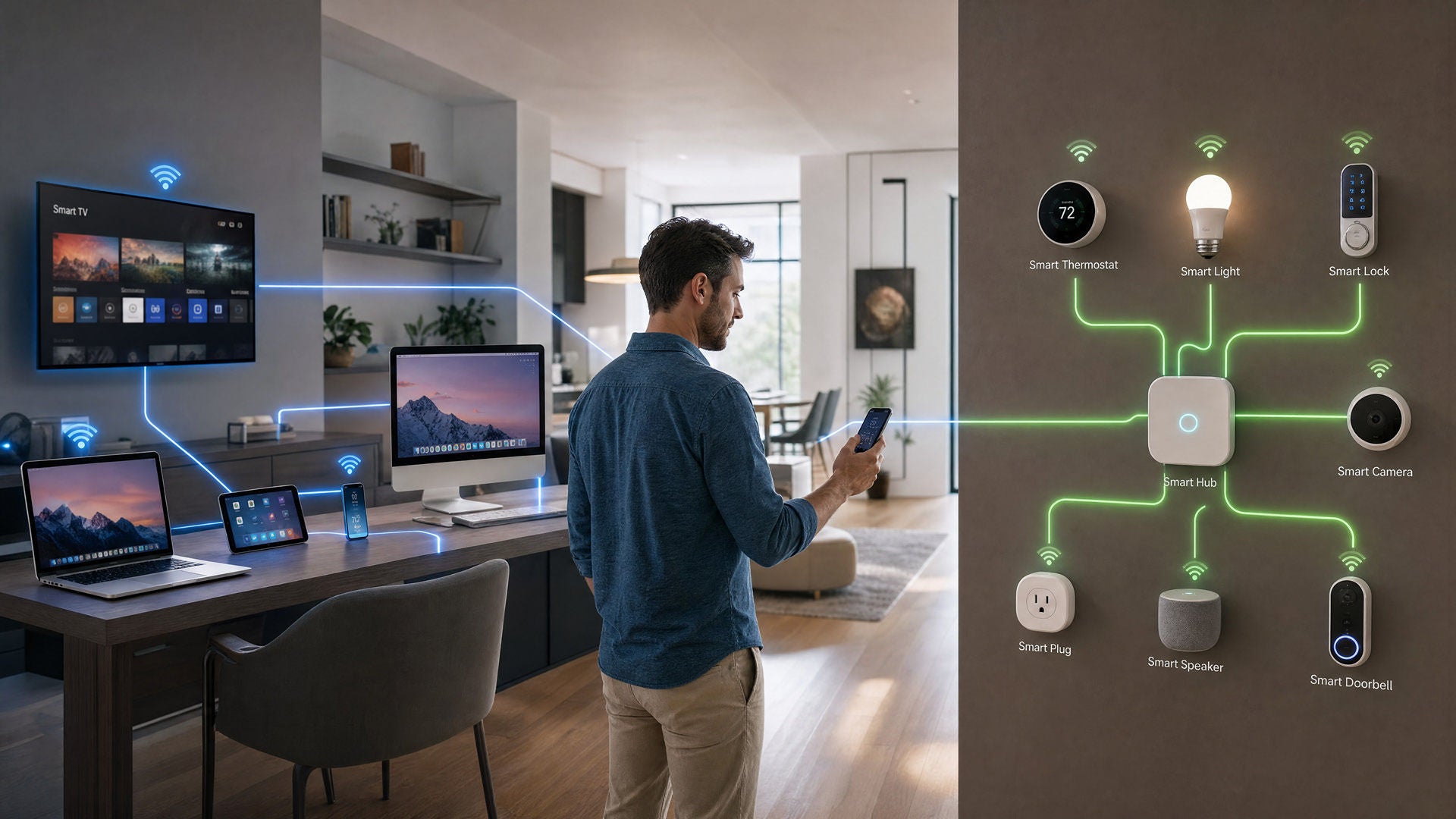
The average US household now juggles around 21 connected devices, from thermostats and doorbells to TVs and speakers.
The catch? Every one of those gadgets is another door into your network.
Creating a separate Wi-Fi network for your smart home devices is one of the simplest ways to keep those doors locked, your connection smooth and your personal data where it belongs. Here's how to set one up, step by step.
Why you should create a separate Wi-Fi network
A little network housekeeping goes a long way. Splitting your smart home gear onto its own network pays off in two big ways: stronger security and better speed.
It strengthens your home network security
Smart devices are famously easy targets. Many ship with weak default passwords and rarely get security updates, which makes them a favorite entry point for attackers.
The FBI puts it bluntly: “Your fridge and your laptop should not be on the same network.”
Keep them separate and a compromised gadget stays boxed in, it can't hop over to the laptop or phone where your sensitive data actually lives.
It improves speed and reduces congestion
Dozens of devices fighting for the same bandwidth can bog everything down. Giving your smart home its own lane keeps chatty IoT gadgets from crowding the network you use for work, streaming and video calls.
The payoff is a steadier connection on the devices that matter most to you, even as your device count keeps climbing.
What equipment do you need?
To run more than one network, you need a router or gateway that supports a guest network or multiple network names (SSIDs). Most modern equipment does.
You'll also want one with current security like WPA3 encryption and the ability to turn on features such as client isolation. If your gateway came from your internet provider in the last few years, it likely checks all of these boxes.
Does your current setup already support it?
The quickest way to find out is to open your router's app or admin settings and look for a “guest network” or “add network” option. Optimum customers can check right inside the My Optimum app, which shows your networks, connected devices and settings in one place.
If you see a guest network toggle, you're ready to go, no extra gear required. Not sure whether you even have the right hardware? Our guide on whether you need a modem and a router is a good place to start.
Can one router run two Wi-Fi networks?
Yes. A single router can broadcast several networks at the same time, each with its own name and password. That's exactly how guest networks work, and it's the foundation for a dedicated smart home network. A quick primer on the terms helps it all click.
Understanding SSIDs and guest network mode
An SSID is simply the name of a Wi-Fi network, the one you tap to connect. Your router can broadcast more than one SSID at once, which is how your main network and a guest network live on a single device. Guest mode is the easiest route: it spins up a separate network that, when set up right, keeps connected devices walled off from your primary one.
Dual-band vs tri-band: which one do you need?
Dual-band routers broadcast on two frequencies (2.4 GHz and 5 GHz); tri-band adds a third lane for more simultaneous traffic.
For a typical home, dual-band handles a separate smart home network just fine, many IoT devices only use 2.4 GHz anyway.
If you've got a device-packed household and want extra headroom, tri-band gives you more room to spread the load. Either way, both can run multiple networks at once.
Steps to create a separate Wi-Fi network at home
Ready to set it up? The exact menu names vary by router, but the flow is the same. Here's the play.
Step 1: Access your router's admin panel
Open your router's companion app, or type its IP address into a browser, to reach the admin settings. Optimum customers can skip the guesswork and sign in to the My Optimum app, where everything lives under your Wi-Fi settings. Log in with your admin credentials to get started.
Step 2: Locate guest network or SSID settings
Look for a section labeled “Guest Network,” “Guest Wi-Fi” or “Add a Network.” This is where you'll create the second network your smart home devices will live on, separate from your main one.
Step 3: Name and configure the new network
Give your new network a clear, distinct name, something like “Smarthome” or “IoT”, so it's easy to tell apart from your primary Wi-Fi. Skip anything that reveals personal details. Then set it to broadcast so your devices can find it during setup.
Step 4: Create a strong, unique password
Protect the new network with its own long, unique password, never reuse the one from your main network. A mix of upper and lowercase letters, numbers and symbols makes it far tougher to crack. A password manager makes storing it painless.
Step 5: Enable client isolation
This is the step that does the heavy lifting. Client isolation (sometimes called “AP isolation” or “device isolation”) stops devices on the network from talking to each other and to your main network. Turn it on for your smart home network so a single compromised gadget can't reach anything else you own.
Step 6: Connect your smart home devices
Now move your smart devices over. In each device's app or setup menu, choose your new network and enter its password. Work through them one at a time, thermostats, plugs, cameras, speakers, until your everyday phones and computers are the only things left on your primary Wi-Fi.
Tips to keep your smart network secure
Setup is just the start. A few simple habits keep your segmented network locked down for the long haul.
Update your router firmware regularly
Firmware updates patch security holes before attackers can use them. Turn on automatic updates if your router offers them, or check for new versions every few months. The same goes for your smart devices, enable auto-updates wherever you can.
Use strong encryption on both networks
Make sure both your main and smart home networks use the strongest encryption your equipment supports. WPA3 is the current standard, introduced in 2018 and now built into the latest Wi-Fi-certified gear; WPA2 with AES is a solid fallback for older devices. Optimum gateways support WPA3, so you're covered out of the box.
Audit your connected devices
Every so often, take stock of what's actually on your networks. If you spot a device you don't recognize, or one you no longer use, remove it. The My Optimum app makes this easy, listing every connected device so you can keep your smart home network tidy and trusted.
Frequently Asked Questions (FAQs)
How do you create a separate Wi-Fi network?
Open your router's app or admin settings, turn on the guest network or add a new network name (SSID), give it its own name and a strong password, and enable client isolation. Then connect your smart home devices to that network instead of your main one. Optimum customers can do all of this in the My Optimum app.
Is Wi-Fi piggybacking illegal?
Piggybacking means using someone else's Wi-Fi without their permission. In many US states it can run afoul of unauthorized-access laws, and it goes against most providers' terms of service. It's also a good reminder to lock down your own network with a strong, unique password and current encryption so no one can hop on uninvited.
Can I have two separate Wi-Fi networks in my house?
Yes. Most modern routers and gateways can broadcast more than one network at once — typically your main network plus a guest network — each with its own name and password. Some support several networks, which is ideal for keeping smart home devices separate from your everyday ones.
Is it possible to create your own Wi-Fi network?
Absolutely. Any home with an internet plan and a Wi-Fi router or gateway can create one, and add more. With an Optimum gateway and the My Optimum app, setting up and managing your networks takes just a few taps.
Consider Optimum Smart Wi-Fi for easier control
If managing all of this by hand sounds like a chore, Optimum's Whole Home Wi-Fi is built to do the heavy lifting. It pairs a Smart Wi-Fi gateway with the My Optimum app and adds proactive security monitoring that watches for malware, phishing and viruses, plus up to three extenders for wall-to-wall coverage. You manage networks, devices and passwords from one app, no admin panel required.
Want a home network that's ready for every smart device you throw at it? Explore Optimum's Wi-Fi 6E and Whole Home Wi-Fi to give your connection the speed, coverage and built-in security a growing smart home needs.
YOU MAY ALSO LIKE

Optimum vs. AT&T: Compare Internet speed, pricing and coverage
- Read Time: 8 min.
- Internet
- October 08, 2026
How Much Internet Speed Do You Need?
- Read Time: 8 min.
- Internet
- October 08, 2026
How to Find The Best Internet Service Providers (ISPs) In Your Area
- Read Time: 6 min..
- Internet
- October 08, 2026